

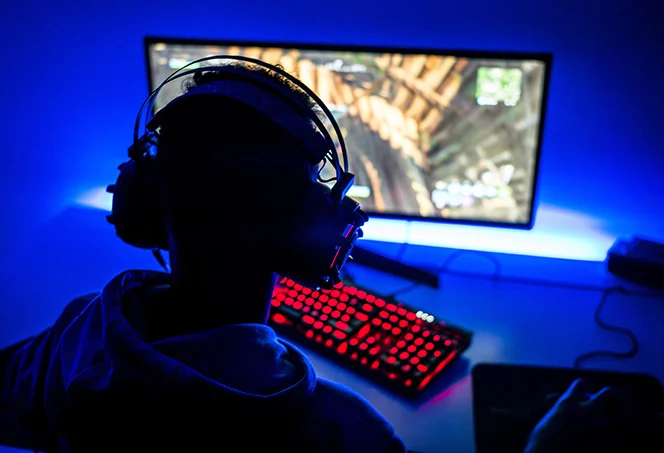
Gaming on a low-end PC can be a real challenge. Whether you’re using an older desktop, a budget laptop, or a machine that’s not built for gaming, performance issues like low frame rates, lag, and poor graphics quality can quickly dampen the experience. For many gamers, a high-end PC isn’t always within reach, making the struggle to get the best performance from a low-end setup all too familiar.
The real challenge comes when trying to balance smooth gameplay with decent visuals. Reducing graphics settings can improve performance, but it often sacrifices visual fidelity, leaving the game looking blurry or washed out. For most players, finding that sweet spot between performance and quality is crucial—but it’s not always easy.
Websites covering PC optimization often create a QR code to connect users with troubleshooting guides, downloadable tools, or community forums through a quick smartphone scan
This article is here to help. We’ll share practical tips and tricks to enhance your gaming experience on a low-end PC, from optimizing software to tweaking in-game settings. With a little patience and the right approach, you can make the most of your hardware and enjoy a smoother, more enjoyable gaming experience without having to invest in expensive upgrades.

Understanding Low-End PCs and Gaming Limitations
Low-end PCs typically have older or less powerful hardware, including a slower CPU, limited RAM, and weaker integrated or budget GPUs. These systems may struggle with modern gaming, which demands higher processing power for tasks like rendering detailed graphics and running resource-intensive gameplay. As a result, gamers with low-end PCs often face challenges such as lag, low frame rates, and long load times, which can significantly affect the gaming experience.
Understanding these limitations is crucial for making informed decisions about how to optimize your system. While upgrading hardware can be an option, it’s not always feasible due to budget constraints. Instead, gamers need to focus on software optimizations and in-game settings to get the best performance possible from their existing setup. By knowing the exact limitations of their hardware, players can prioritize adjustments that have the most impact on gameplay.
Tips to Improve Gaming Performance on a Low-End PC
Optimize In-Game Settings
One of the most effective ways to boost gaming performance on a low-end PC is by adjusting the in-game settings. Start by lowering the resolution to reduce the strain on your graphics card. Lowering settings like shadows, textures, and anti-aliasing can also lead to smoother gameplay without sacrificing much visual quality. Many modern games have built-in preset graphics options, such as “Low” or “Medium,” designed specifically for less powerful systems.
Turning off unnecessary effects, like motion blur or depth of field, can help increase frame rates. It’s all about striking a balance—reducing these settings can have a big impact on your FPS (frames per second) without making the game unplayable. Additionally, some games come with advanced options to disable or reduce specific visual elements, like ambient occlusion or reflections, which are great to turn off if your PC is struggling with performance.
Update Drivers and Software
Updating your PC’s drivers, especially for the graphics card (GPU), is a crucial step in improving gaming performance. GPU manufacturers like NVIDIA and AMD frequently release driver updates that optimize performance for the latest games. These updates can often fix bugs, improve stability, and, most importantly, enhance the graphics card’s performance. You can typically update drivers through the device manager or using dedicated software like NVIDIA GeForce Experience or AMD Radeon Software.
In addition to updating GPU drivers, make sure your operating system is fully updated. Sometimes, performance issues are tied to outdated system files or missing patches. Game-specific patches can also improve performance, as developers release updates to optimize how their games run on different hardware configurations. Keeping all software up to date ensures that your system runs as efficiently as possible, which can make a noticeable difference in gameplay.
Overclocking Your PC Components
Overclocking is the process of running your PC’s components—typically the CPU or GPU—at higher speeds than they were originally designed for. While overclocking can lead to a significant performance boost, it’s important to approach it with caution. Overclocking can increase heat output, which may lead to overheating and system instability if not monitored properly. Ensuring your system has adequate cooling is essential before attempting any overclocking.
If done correctly, overclocking can improve gaming performance, especially in CPU- and GPU-intensive games. However, it requires patience and trial-and-error to find the right settings. Tools like MSI Afterburner for GPUs or Intel’s XTU (Extreme Tuning Utility) for CPUs can help you safely adjust clock speeds. Keep an eye on temperatures and system stability—if the system starts to crash or overheat, dial back the overclock. For low-end PCs, overclocking may be one of the few ways to gain additional performance without buying new hardware.
Adjust Power Settings and Performance Mode
Windows allows users to adjust power settings, and selecting the correct one can help boost gaming performance on low-end PCs. The default setting for most systems is “Balanced,” which is designed to conserve energy while providing adequate performance for everyday tasks. However, this power plan is not ideal for gaming, as it can throttle the CPU or GPU to save power, leading to lower performance.
Switching to the “High Performance” power plan forces the system to prioritize performance over energy savings. This means your CPU and GPU will run at their maximum clock speeds, which can lead to a noticeable performance improvement in games. To enable this mode, simply go to the Power Options in the Control Panel and select “High Performance.” This adjustment can help prevent lag or stuttering during gameplay, making it an easy and effective way to boost performance.
Free Up System Resources
Closing unnecessary background applications is an easy yet powerful way to improve gaming performance on a low-end PC. Many programs run in the background, using up valuable system resources such as RAM and CPU power. By closing applications like web browsers, chat programs, or file-sharing software, you free up more resources for your game to run smoothly.
Additionally, performing regular system maintenance, like cleaning up your hard drive and disabling startup programs, can help improve overall performance. Tools like Windows’ built-in Disk Cleanup and Task Manager allow you to remove temporary files and disable unneeded apps. If you’re low on storage, consider upgrading to a larger hard drive or an SSD for faster read/write speeds, which can significantly improve loading times in games.
Upgrade Hardware
Upgrading your hardware can provide a noticeable boost to gaming performance, but it may not always be a feasible solution for low-end PCs. That said, there are affordable upgrades that can make a difference without requiring a full system overhaul. For instance, upgrading your RAM can improve system performance and help with multitasking, while swapping out a traditional hard drive for an SSD can speed up load times and reduce lag during gameplay.
If your PC has a dedicated GPU, upgrading to a more powerful model can significantly enhance gaming performance. However, low-end PCs may have integrated graphics, in which case adding a discrete graphics card may not be an option due to compatibility or budget constraints. If upgrading hardware isn’t possible, you can still focus on software optimizations to get the best performance from your current setup.
Use Performance-Boosting Software
There are several software tools designed to optimize your system and improve gaming performance, especially on low-end PCs. Programs like Razer Cortex and Game Booster can automatically shut down unnecessary background processes while you’re gaming, freeing up valuable resources for the game. These tools can also offer game-specific optimizations that reduce lag and improve responsiveness.
Some performance-boosting software also includes additional features like disk cleaning, defragmentation, or network optimization, all of which can improve overall system efficiency. While these tools are not a substitute for hardware upgrades, they are an excellent way to make the most of your low-end PC. Many of these programs are free or have trial versions, making them an easy and cost-effective way to enhance your gaming experience.
Optimize Your Internet Connection for Online Gaming
A stable and fast internet connection is essential for smooth online gaming. On low-end PCs, lag in multiplayer games can often be caused by poor internet performance rather than hardware limitations. To reduce latency and improve connection stability, use a wired Ethernet connection instead of relying on Wi-Fi, which can be prone to interference and fluctuations in speed.
Additionally, closing bandwidth-hogging applications, like video streaming or large file downloads, while gaming can help ensure that your system prioritizes gaming traffic. Some games also have in-game settings to optimize for lower pings, such as choosing a server closer to your location. By ensuring your internet connection is optimized, you can reduce lag and improve the overall online gaming experience.
Turn Off Unnecessary Visual Effects in Windows
Windows has several visual effects that, while aesthetically pleasing, can drain system resources. These include animations, transparency effects, and shadows. By disabling these unnecessary effects, you can free up more resources for gaming, leading to better performance. This is particularly important for low-end PCs, where every bit of system resource counts.
To turn off these effects, go to “Performance Options” in Windows and select the option to adjust for best performance. This will disable most animations and visual effects, such as fading or sliding windows, which can significantly improve system responsiveness. While this may make the interface look less flashy, the trade-off in performance is often worth it when gaming on a low-end system.
Use Game-Specific Optimization Tools
Many modern games offer built-in tools or settings specifically designed to optimize performance on lower-end systems. These tools can automatically adjust graphics settings or disable certain features to ensure smoother gameplay. For example, games like Fortnite and League of Legends allow players to switch to lower graphics modes that still deliver a playable experience without compromising too much on visual quality.
Additionally, some games may have “performance mode” settings that automatically adjust based on your system’s capabilities. Exploring these settings and using them to your advantage can help you get the most out of your low-end PC without needing to manually tweak each individual option. If your game doesn’t have built-in optimization tools, look for community-recommended settings or guides to help improve performance.
Conclusion
To sum up, improving gaming performance on a low-end PC involves a combination of hardware and software optimizations. By adjusting in-game settings, updating drivers, and freeing up system resources, you can make a significant difference in how your games perform. Additionally, overclocking components, using performance-boosting software, and adjusting power settings can help squeeze out extra performance without needing expensive upgrades.
It’s important to remember that optimizing a low-end PC may take some trial and error. Every system is unique, and different tweaks will yield varying results. Don’t be discouraged if some methods take time to show improvement—experimenting with different combinations of settings can help you find the optimal setup for your PC.
We’d love to hear about your experience! If you’ve tried any of these tips or have discovered your own ways to boost gaming performance, share them in the comments below. Your insights could help fellow gamers optimize their setups and get the most out of their low-end PCs.