

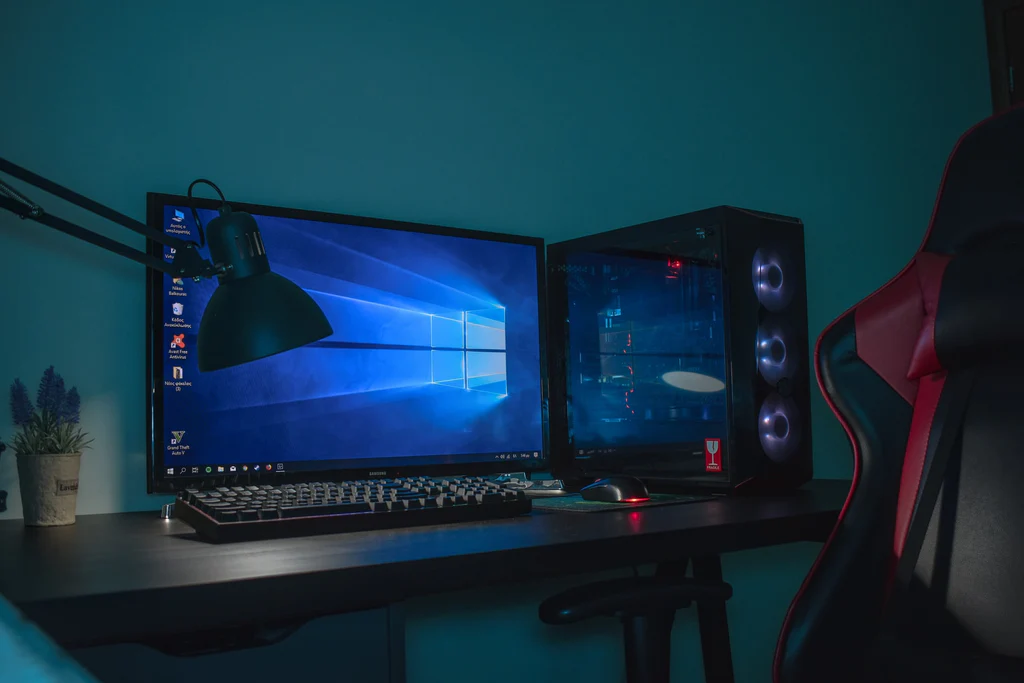
Building your own gaming PC is one of the most exciting and rewarding experiences for any gamer. It’s not just about assembling hardware; it’s about creating a system tailored to your needs and preferences. Whether you’re a casual gamer or a competitive player, building a PC gives you full control over every component, ensuring that it performs exactly the way you want it to.
However, for beginners, the process can seem overwhelming—there are numerous parts to consider, compatibility issues to navigate, and installation steps to follow. This is where the excitement meets the challenge, and the satisfaction comes from learning and succeeding in creating something from scratch.
One of the primary reasons people choose to build a gaming PC instead of buying a pre-built one is the performance. Custom builds allow you to select high-quality components that are tailored for the type of gaming you do, meaning your PC can handle everything from casual titles to high-end AAA games. Another advantage is cost-effectiveness—when you build your own PC, you can allocate your budget wisely, avoiding unnecessary markups often found in pre-built systems.
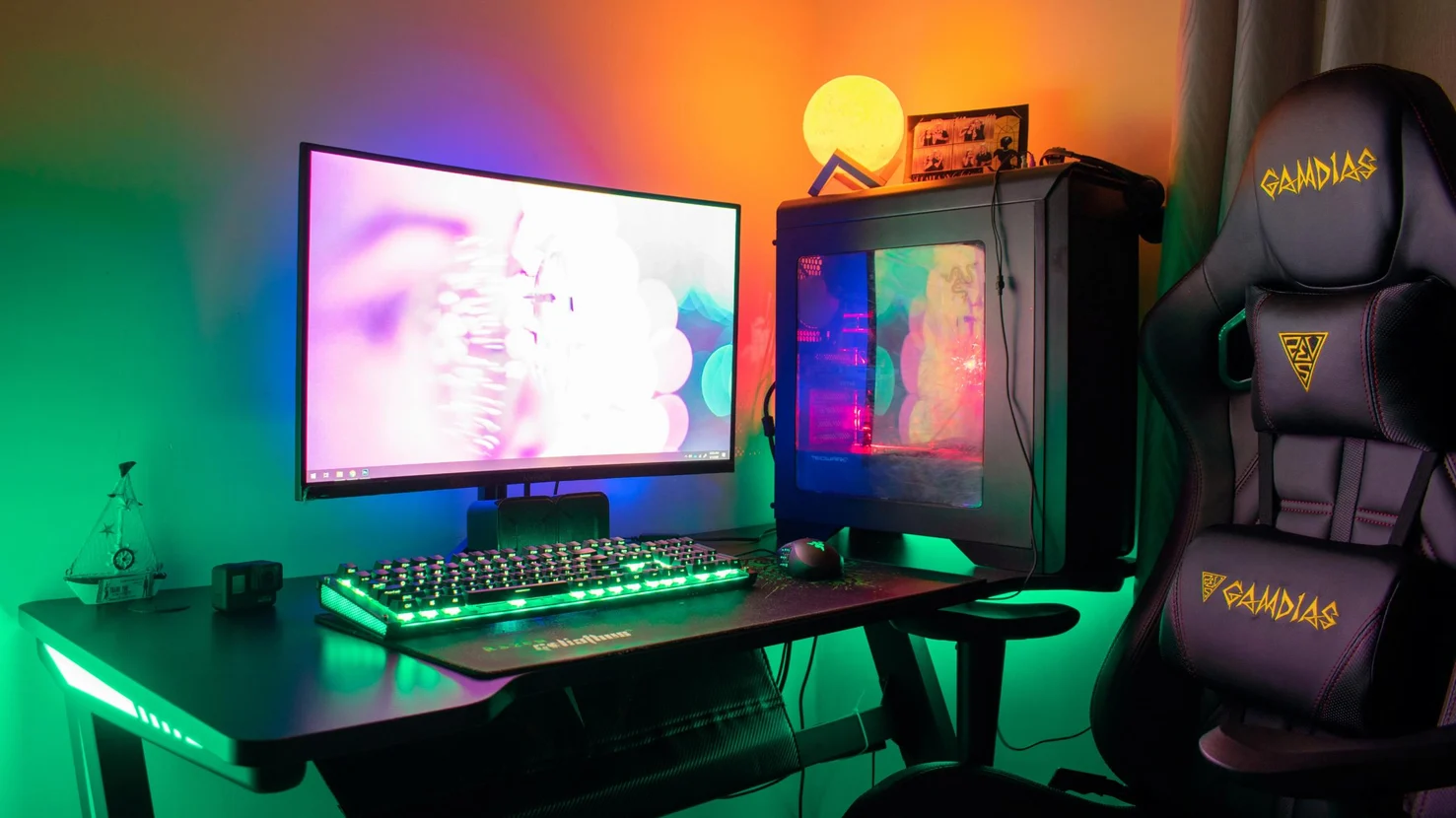
Additionally, customization is a huge benefit. You can personalize everything from the aesthetics (think RGB lighting and custom cases) to the functionality of the system, ensuring it meets your specific needs, whether that’s high-end gaming, streaming, or content creation.
Why Build a Gaming PC?
Building a gaming PC offers a distinct set of advantages over purchasing pre-built systems. One of the primary benefits is cost savings. With pre-built PCs, you often pay a premium for assembly, warranty, and brand markup. When you build your own, you have control over where your money goes, allowing you to prioritize the components that matter most to you, whether it’s the CPU, GPU, or storage. This means you can often get more powerful hardware for the same price or less than a pre-built system.
Another key advantage is better performance. Pre-built systems often come with compromises, such as less powerful CPUs or GPUs, or lower-quality components in non-essential areas like cooling and storage. When building your own, you can carefully select each part based on your gaming needs, ensuring the system performs optimally. Custom builds also allow you to future-proof your rig, selecting parts that will be relevant for years to come.
Finally, personalization is a huge draw. Building your own PC allows you to customize every aspect, from the components to the aesthetics, ensuring it looks and performs the way you want. The sense of accomplishment you get from assembling a system yourself is unparalleled and adds a deeper connection to your gaming setup.
Understanding the Basics of PC Components
Understanding each component of your PC is crucial for building a system that meets your gaming needs. Let’s break down the most essential components:
- Central Processing Unit (CPU): The CPU is the brain of your gaming PC. It handles most of the calculations and instructions that power your games. When choosing a CPU, consider factors like clock speed (measured in GHz) and the number of cores. A higher clock speed typically means better performance, especially in games that are CPU-heavy. More cores can be beneficial for multitasking and running more demanding games, but for gaming specifically, a quad-core or six-core CPU should suffice.
- Graphics Processing Unit (GPU): The GPU is arguably the most important component for gaming. It handles rendering images, animation creator, and video. A strong GPU will result in higher frame rates, better graphical quality, and smoother gameplay. When choosing a GPU, you should consider the performance, VRAM (video memory), and compatibility with your monitor (e.g., resolution and refresh rate). High-end GPUs are better for 4K gaming, while mid-range ones are great for 1080p or 1440p gaming.
- Motherboard: The motherboard is the main circuit board where all components connect. When choosing a motherboard, ensure it’s compatible with your CPU, RAM, GPU, and storage. The motherboard determines how many expansion slots you have for additional components and supports features like Wi-Fi or Bluetooth.
- Memory (RAM): RAM stores temporary data that the CPU needs to access quickly. For gaming, 16GB of DDR4 RAM is typically the sweet spot, though 8GB may suffice for less demanding titles. Having more RAM helps with multitasking and running modern games smoothly.
- Storage (HDD vs SSD): SSDs (Solid State Drives) are faster than traditional HDDs (Hard Disk Drives), leading to quicker boot times, faster load times for games, and better overall performance. An SSD is highly recommended for your operating system and frequently-played games, while an HDD can be used for bulk storage.
- Power Supply Unit (PSU): The PSU provides power to all components in your PC. It’s crucial to select a PSU with sufficient wattage to support all your parts, with some margin for future upgrades. Choose a high-quality PSU from a trusted brand to ensure reliability and safety.
- Cooling System: Gaming PCs generate a lot of heat, especially when running demanding games. A reliable cooling system is essential to keep your PC performing at its best and prevent overheating. You can choose between air cooling (with fans) or liquid cooling systems, with liquid cooling being more efficient but more complex.
- Case: The PC case houses all the components and ensures proper airflow. When choosing a case, consider its size (to fit your components), airflow (adequate space for fans), and aesthetics (RGB lighting, design). A well-ventilated case will keep your components cool, while a cluttered case can restrict airflow and cause heat buildup.
Setting Your Budget
Setting a realistic budget is one of the first steps in building a gaming PC. Your budget will determine the quality of components you can afford and help guide your decisions on what to prioritize. Start by identifying the performance level you want from your PC—whether it’s for casual gaming, streaming, or competitive play. A basic entry-level build can be assembled for around $500-$700 and will run less demanding games at 1080p with decent settings.
A mid-range build, priced around $900-$1,500, will comfortably handle modern AAA games at high settings and 1440p or 1080p resolution. If you’re aiming for top-tier gaming performance and 4K capabilities, a high-end build can exceed $2,000, including high-performance components like the latest GPU and CPU.
When setting your budget, be sure to account for additional costs such as peripherals (keyboard, mouse, monitor) and software (Windows license, gaming subscriptions). Balancing performance and cost is key: while it’s tempting to go all-out on a powerful GPU, a well-rounded system with a strong CPU, sufficient RAM, and SSD storage will offer better overall value for gaming.
How to Choose the Right Components
Selecting the right components for your gaming PC depends on the type of gamer you are and the games you want to play. Casual gamers might prioritize affordability and a balance between performance and cost. A mid-range GPU like the NVIDIA GTX 1660 or AMD Radeon RX 5700, along with a quad-core CPU and 8-16GB of RAM, will provide great performance for 1080p gaming.
Competitive gamers, on the other hand, may prioritize high frame rates and low latency, making components like the NVIDIA RTX 3070 or AMD Ryzen 7 ideal choices for faster processing and better overall performance in fast-paced games.
Start by checking compatibility between parts, particularly the motherboard and CPU, and ensure that the GPU will fit into the case and is supported by the PSU. Use online tools like PCPartPicker to help you build your PC and check for part compatibility.
It’s essential to read reviews and benchmarks to get a sense of how well each component performs in real-world gaming scenarios. Trustworthy brands like Corsair, EVGA, ASUS, and MSI are known for their reliability and quality. Websites like Newegg, Amazon, and B&H offer competitive prices and bundles, but be on the lookout for seasonal sales or discounts.
Step-by-Step Guide to Assembling Your Gaming PC
Building your own gaming PC can be a daunting task, but with a step-by-step approach, it becomes a manageable and rewarding experience. Start by preparing your workspace. You’ll need a clean, spacious area with good lighting and an anti-static mat to prevent any damage to sensitive components. It’s also helpful to have a set of basic tools like screwdrivers, thermal paste, and cable ties.
The first step in assembly is to install the CPU on the motherboard. Carefully align it with the socket and avoid touching the pins. After that, install the RAM by gently pushing it into the motherboard slots until it clicks. Next, install your storage (either SSD or HDD) in the appropriate slots.
Once your motherboard is ready, mount it in the case. Align the motherboard with the standoffs in the case, ensuring the ports align with the rear of the case. Then, install the GPU by sliding it into the PCIe slot on the motherboard and securing it with screws. Next, connect the PSU to the motherboard, GPU, and storage drives. Make sure cables are routed neatly to improve airflow.
Cable management is crucial for airflow and aesthetics, so use zip ties or cable sleeves to keep cables organized. Finally, install the cooling system (either air or liquid) and ensure all fans are positioned for optimal airflow. After assembly, connect all peripherals and power on your PC to check for functionality.
Powering Up and Installing Operating System
After assembling your PC, the next step is to power it on and install the operating system (OS). Before doing this, double-check all connections—especially the PSU and GPU—since any loose connections can prevent the PC from booting.
Once you power up the system, you’ll likely see a prompt to enter the BIOS. This is where you can adjust initial settings like boot order or enable XMP profiles for RAM. If everything looks good in the BIOS, you can proceed to install your operating system. Most users opt for Windows 10 or Windows 11, which can be installed via USB or optical drive.
After installing the OS, make sure to install essential drivers. Start with your GPU drivers (NVIDIA or AMD), followed by drivers for your motherboard, audio, and network adapters. Ensure all components are properly recognized, and run updates for the OS and drivers to ensure everything is up-to-date.
Performance Testing and Troubleshooting
Once your PC is up and running, it’s time to test its performance. You can use benchmarking tools like 3DMark or Cinebench to check how well your system performs under load. These tests will help you assess how well your PC handles graphics-intensive games or multi-core processing tasks.
If your PC doesn’t perform as expected, troubleshooting is key. Overheating can be a common issue, especially if the cooling system is inadequate. Check your CPU and GPU temperatures using software like HWMonitor. Performance issues like lag or crashes could also be caused by driver issues or inadequate system resources. Ensure your drivers are up-to-date, and check your RAM usage and GPU utilization during gaming to identify bottlenecks.
For more serious issues, such as a PC that won’t boot or shows no display, start by checking your PSU, reseating components like RAM or the GPU, and verifying all cables are securely connected. If problems persist, consult the motherboard manual for troubleshooting tips or seek support from the manufacturer.
Customizing and Upgrading Your Gaming PC
Customizing and upgrading your gaming PC is one of the best aspects of building your own system. After your initial build, you can tweak BIOS settings to improve performance. Basic tweaks include enabling XMP profiles for RAM or adjusting the CPU multiplier for mild overclocking. Overclocking can provide a performance boost, but be careful not to push the hardware beyond its limits, as this can lead to instability.
In the future, you may want to upgrade components to keep your PC running smoothly as new games or software are released. Upgrading RAM to 32GB or adding a second GPU for SLI or Crossfire support can significantly boost performance. Upgrading your GPU will have the biggest impact on gaming performance, especially if you plan to game at higher resolutions or use VR.
You can also focus on improving the aesthetics of your build. Add RGB lighting, switch to a sleek, tempered-glass case, or use custom cable management kits to make your system look even better. Customization isn’t just about performance; it’s also about creating a PC that reflects your personal style and gaming needs.
Conclusion
In conclusion, building your own gaming PC is a rewarding experience that allows you to fully customize your gaming setup, improve performance, and save money. To recap, the process involves choosing the right components based on your needs and budget, assembling the parts with care, and then installing the operating system and necessary drivers. The key steps include selecting a compatible CPU, GPU, motherboard, RAM, and storage, followed by assembling the components in your chosen case. Once the system is built, you’ll install your operating system and test the performance to ensure everything runs smoothly.
While building your own PC can be intimidating at first, it’s important to take your time and enjoy the process. There’s no rush, and every step offers an opportunity to learn something new. Whether it’s selecting parts, installing the components, or fine-tuning performance, take pride in the accomplishment that comes with creating a machine tailored to your exact needs.
The benefits of building a PC go beyond just saving money—customization, better performance, and cost-efficiency are all major advantages. You get to choose every part, ensuring the system performs optimally for your games and your budget. Plus, you’ll have a machine that’s unique to you.